Workflow guide · Updated August 31, 2026
List app, daily planner or calendar? The 6 kinds of productivity tool
Todoist, Obsidian and Motion are often compared as productivity apps, but they are doing very different jobs. Choosing the wrong kind can make a good app feel useless.
 Todoist
 Structured
 NotePlan
 OmniFocus
 TickTick
Our take
Where we would start
First work out what keeps going wrong. Use a classic list app when tasks disappear, a daily planner when you overfill the day, a notes-first tool when tasks lose their context, a GTD app for a very large project inventory, a habit-and-focus app when starting is the hard part, or an automatic scheduler when your calendar changes constantly.
Inside the apps
What they actually look like
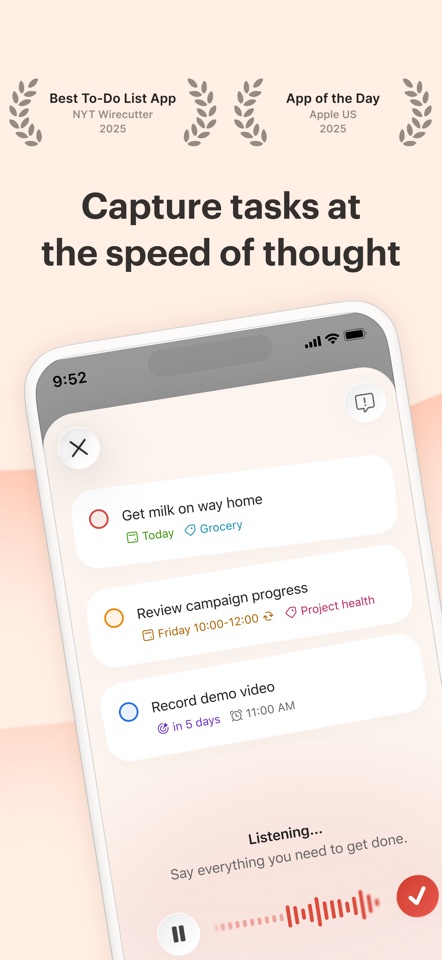
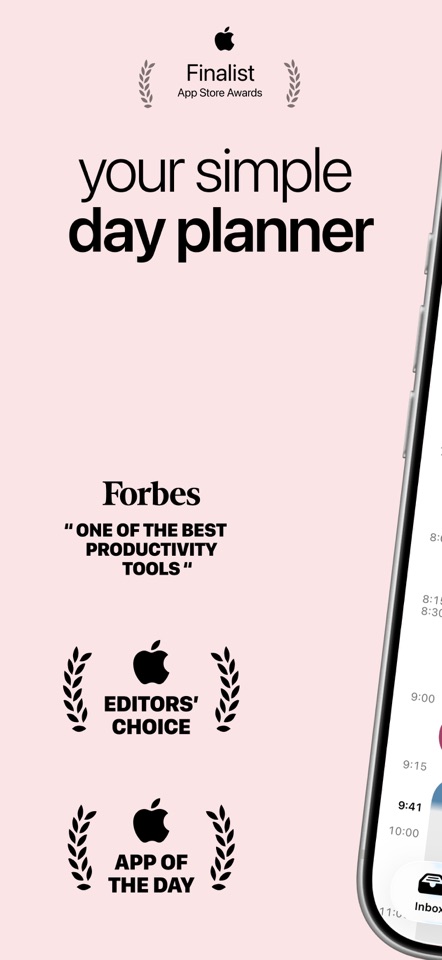
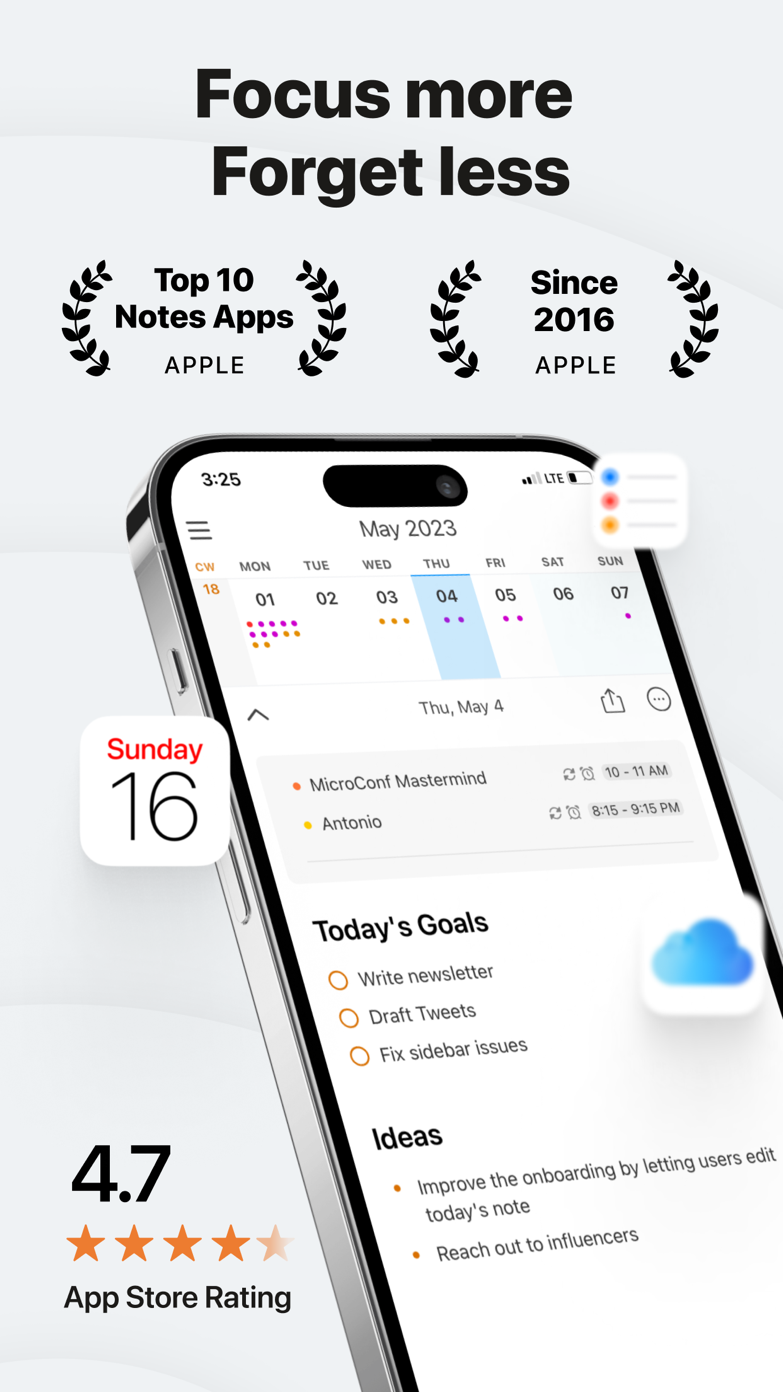
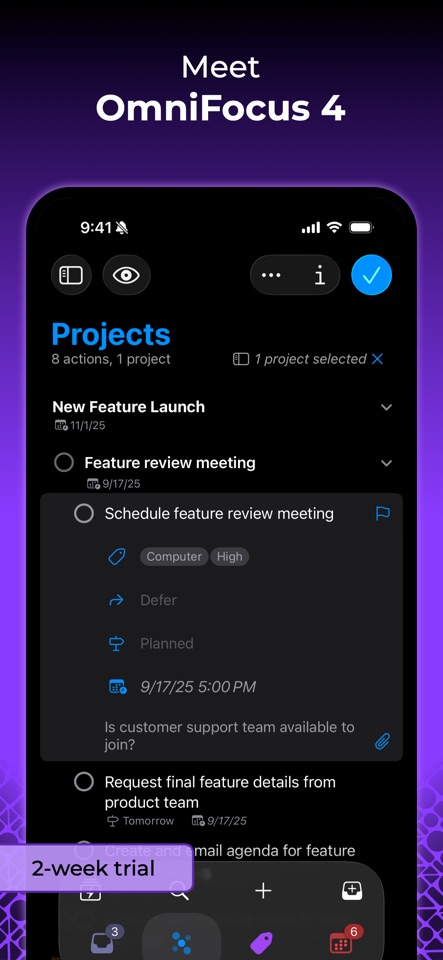
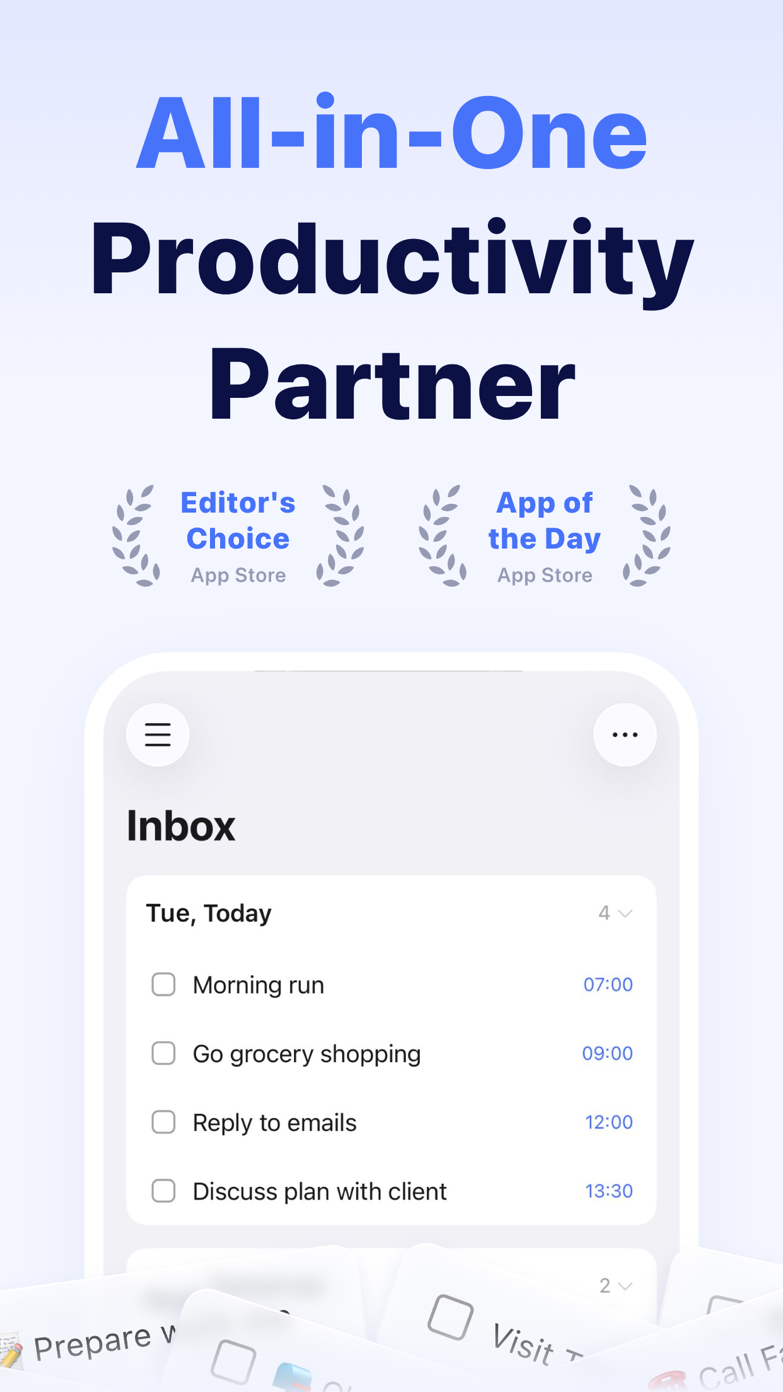
These screenshots come from the apps' current App Store listings. They are not mockups we made for the article.
The quick version
The differences that matter
- Classic list manager
- Todoist, Apple Reminders, Microsoft To Do
- Calendar or time-blocking planner
- TickTick, Structured, Sunsama
- Notes-first system
- Obsidian, Notion, NotePlan
- GTD or project database
- OmniFocus, Things 3
- Habit and focus hybrid
- TickTick, Tiimo, Focus To-Do
- Automatic scheduler
- Motion, Reclaim, FlowSavvy
A list remembers the work; a planner finds time for it
Todoist and Reminders are mainly lists: they remember what you agreed to do and bring it back later. TickTick, Structured and Sunsama push those tasks toward a calendar so you can see when the work might happen.
If your list is reliable but every day is overfilled, another list app will not help much. You need to make time visible, or put less on the day.
Notes-first tools keep the task beside its explanation
Obsidian, Notion and NotePlan make sense when tasks begin inside meeting notes, research or project documents. The action stays beside the material that explains it, and queries can gather open tasks from many notes.
The trade-off is setup. A normal task manager already has a Today view, reminders and repeating tasks. A notes app often asks you to build those pieces yourself or rely on plugins.
Automatic schedulers keep rebuilding the day for you
Automatic schedulers move work around as priorities and meetings change. That can save a daily round of calendar Tetris. It can also feel as though the software is bossing you around, especially when the duration estimates are wrong.
Try changing the plan before you commit. If correcting the schedule is harder than arranging it yourself, the automation is not saving much.
Good to know
A few common questions
What type of to-do app should I use?
Choose the category that matches the failure: capture, planning time, keeping context, managing many projects, starting work or constantly rescheduling.
Is Obsidian a to-do app?
Obsidian is a notes app that can support sophisticated task workflows through Markdown, queries and community plugins. It is not a dedicated task manager by default.
Is time-blocking better than a to-do list?
It solves a different problem. A list records commitments; time-blocking tests whether those commitments fit into a real day.
Sources
Where we checked the facts
We use the app maker's own pages for prices and features. Reviews and community posts are useful for spotting problems, but one person's experience is still one person's experience.
- 01Project docsObsidian Tasks user guideView source
- 02OfficialTickTick featuresView source
- 03OfficialPlan and connect with Microsoft To DoView source